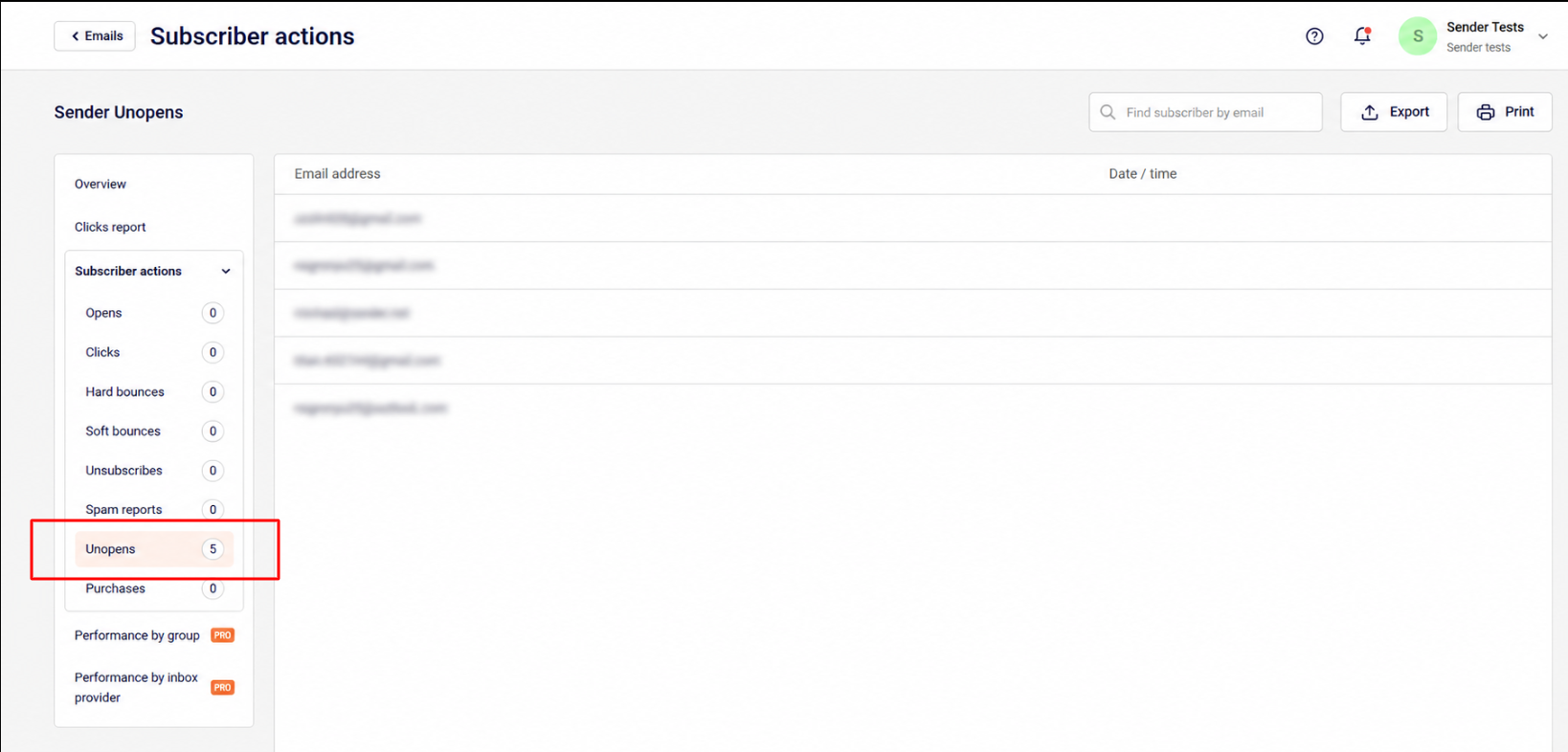
Of course, the easiest way to do that is by going to the Campaigns section and clicking on the “View Reports’ button. Then you will be taken to the Campaign overview; next, click on “Subscriber actions” and select the “Unopens” tab.
From here on, you will be able to export, print, view/edit individual subscribers who did not open this particular campaign.
That’s it!
If you got stuck on a specific task or can’t find a way to execute a particular job, contact our support team via LiveChat or [email protected] – we’re here to help 24/7.
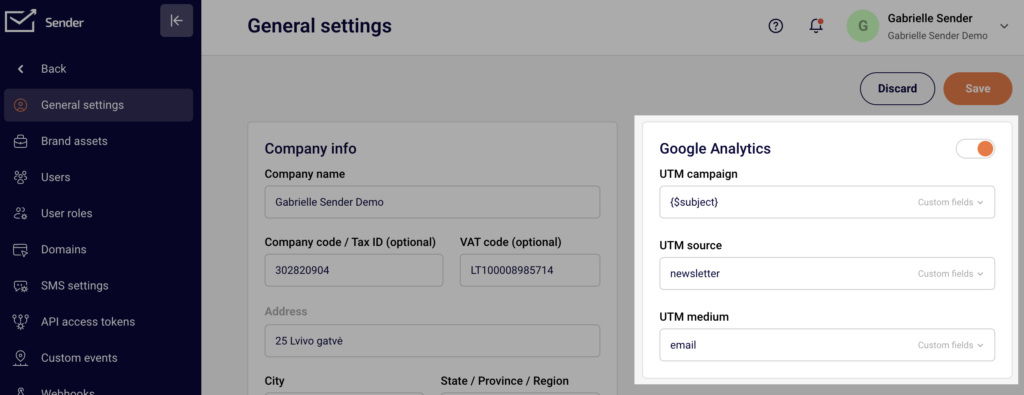
In a nutshell, UTM Parameters are tags that you attach to the end of a URL in order to track each click of a link. Once you enable google analytics, the system will automatically add UTM parameters to the links within the campaign.
There are three types of UTM parameters you can choose from to help you track the traffic. Each one has its own purpose:
utm_campaign – indicates the campaign with a certain URL. Sender.net makes the subject line the default identifier.
utm_source – identifies the source of your traffic. The default identifier is a username you use on the Sender platform.
utm_medium – specifies the medium. In Sender, the default medium is email.
The UTM parameters can be found in the “Settings” section on the “Account Information” tab. There you can see what the assigned values are. If there is a need to change them, it can be done in the same section by editing the table of the default UTM parameters provided above.
Here is an example of the youtube.com’s URL and the UTM parameters in it:
Next time you log into your Google Analytics you will be able to see these statistics.
If you are stuck on a specific task or can’t find a way to execute a particular job, contact our support team via LiveChat or [email protected] – we’re here to help 24/7.
First of all, it is crucial to know about hard and soft bounces to be able to fully understand reports. If you don’t know what bounces are, please read the Soft vs Hard bounces article.
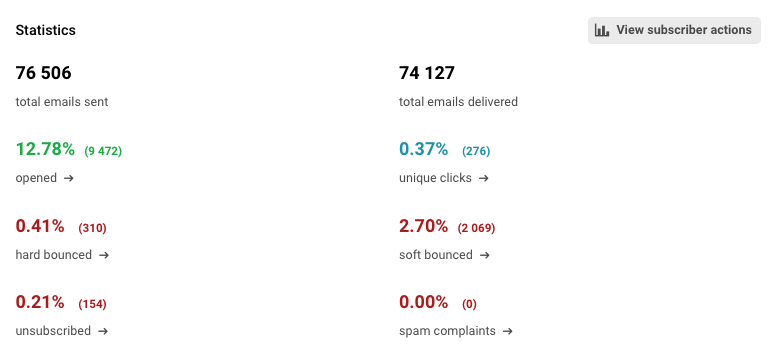
Let’s assume this report is of a campaign you have previously sent.
There are 76 506 sent emails. The report shows that 0.41% (310) of your emails have hard-bounced and 2.70% (2 069) have soft-bounced. So, the remaining email addresses that have successfully received your campaign are 74 127.
The open rate percentage is calculated from the successfully reached email addresses, in this case from 74 127 email addresses. This is intentional as the user should focus on the relevant open rates for the valid email addresses.
That’s it!
If you got stuck on a specific task or can’t find a way to execute a particular job, contact our support team via LiveChat or [email protected] – we’re here to help 24/7.
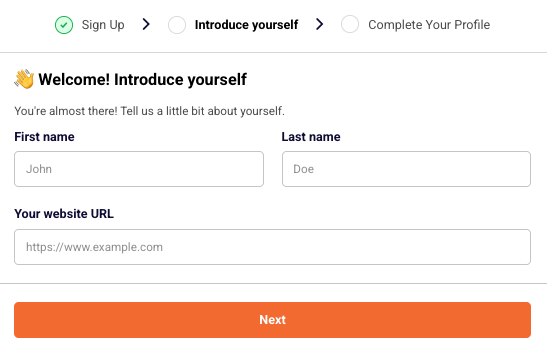
Getting started is easier than you think – we managed to shorten registration process by a mile!
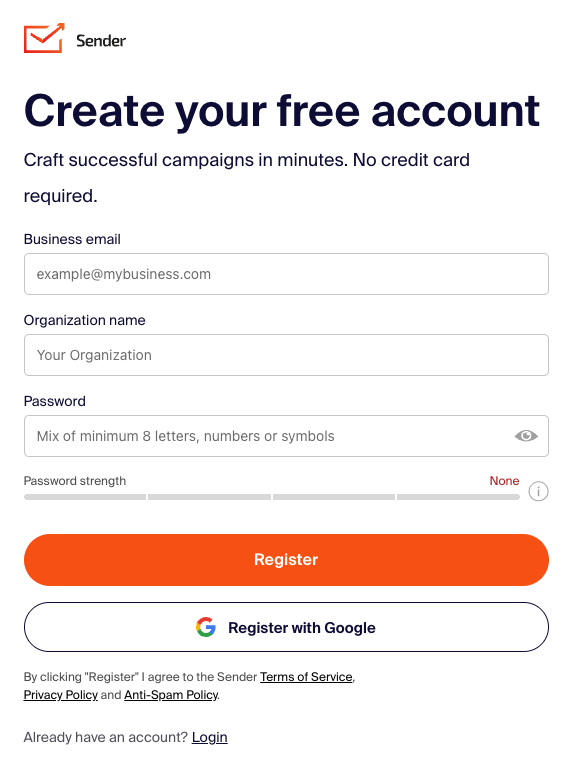
Let’s start by signing up for a free plan. You can start by clicking here – next you will be brought to a registration page. Fill in the business email address, company name and create a password.
Next, enter your first name, last name and website URL.
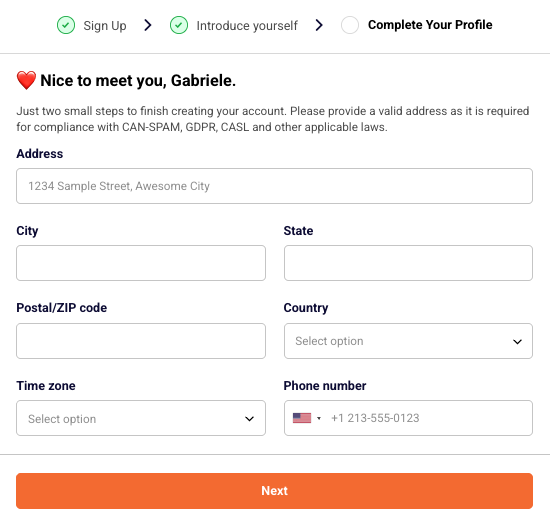
Now enter your business address, choose the timezone and phone number.
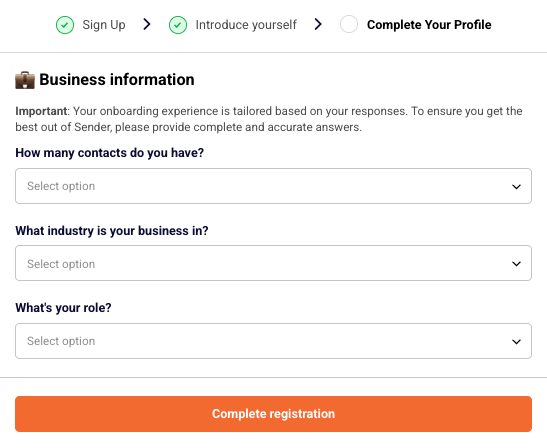
Lastly, answer three quick questions to let us know more about your business.
Registration part is over!
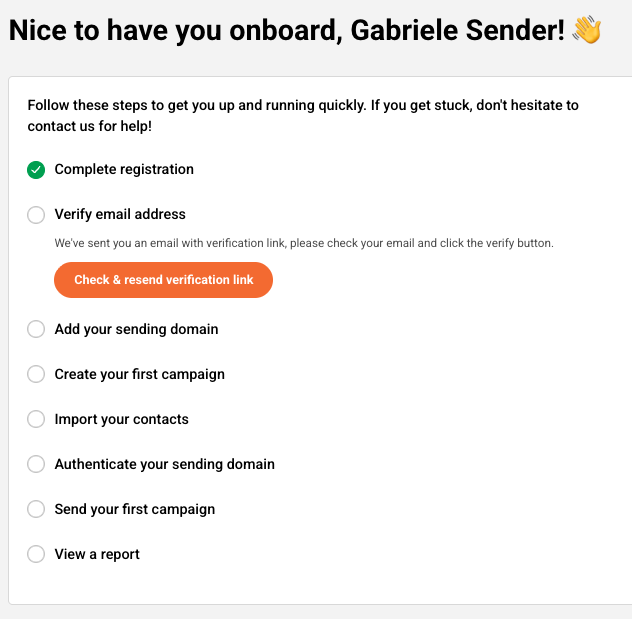
Now login to your account and the dashboard tab will open a list of steps you should finish to complete the setup of your account.
The dashboard will have a walkthrough marker that guides you through the initial setup. You will learn how to verify domain addresses, manage subscribers, read reports etc.
Let’s continue by completing the steps:
Complete registration step will be completed after successful registration.
Verify email address is pretty self-explanatory – you will need to enter your email address below and click on the confirmation email when it arrives in your inbox.
This step requires domain’s verification, click here for the guide.
Sending a first campaign will complete the step. Dedicated campaign management guide be found here
Subscribers import can be done in a few ways – click here for the guide.
To finish this step, a report must be viewed – a dedicated guide on the report section is found here.
That’s pretty much it! When steps are complete, you will understand how the platform works and where different features are located.
If you are stuck on a specific task or can’t find a way to execute a particular job, contact our support team via LiveChat or [email protected] – we’re here to help 24/7.
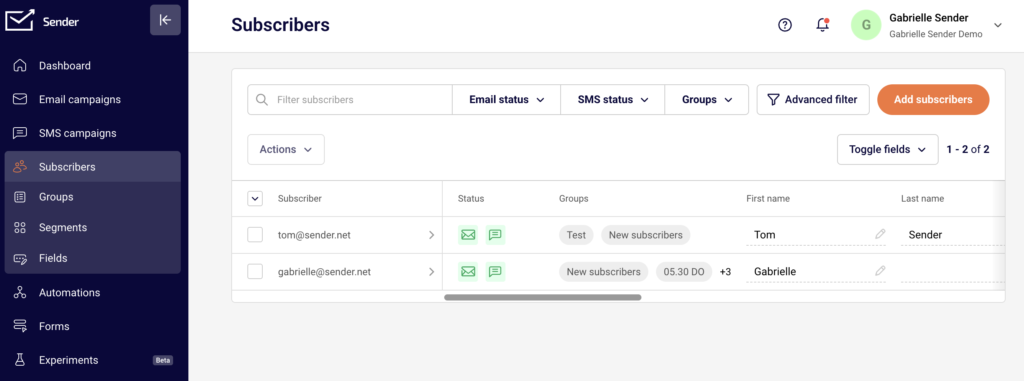
Subscribers can be imported via file import, copy/paste method, API call. Let’s start by opening the Subscribers’ section and clicking the “Add subscribers” button.
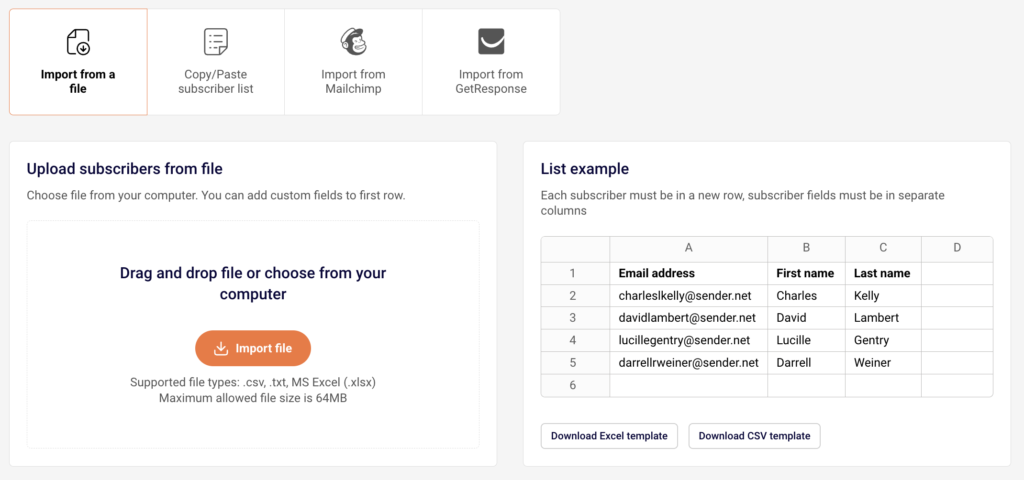
After the button is clicked, the import section will appear. Here we must choose how we’re going to do that:
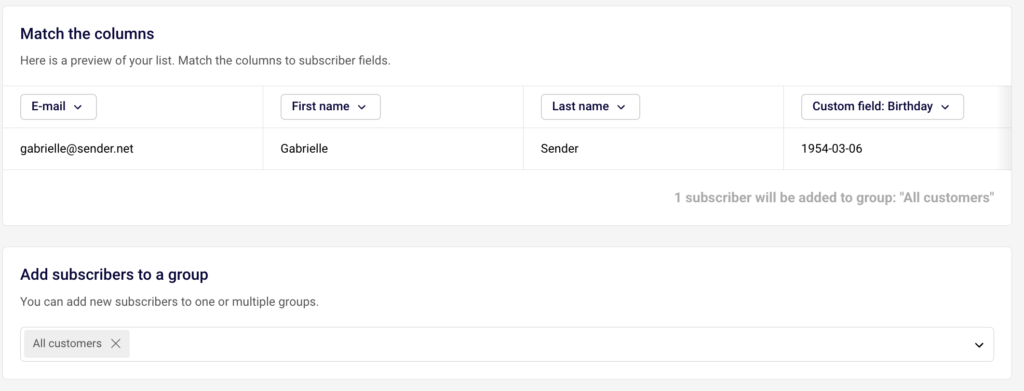
Next, when the subscriber’s list is imported, you will be asked to attach custom fields; for example, recipients’ names must be assigned to the “First name” column, last name to “Last name”, phone number to “Phone” and so on.
After the columns are marked and selected click on start import button and subscribers will be imported.
If you are stuck on a specific task or can’t find a way to execute a particular job, contact our support team via LiveChat or [email protected] – we’re here to help 24/7.
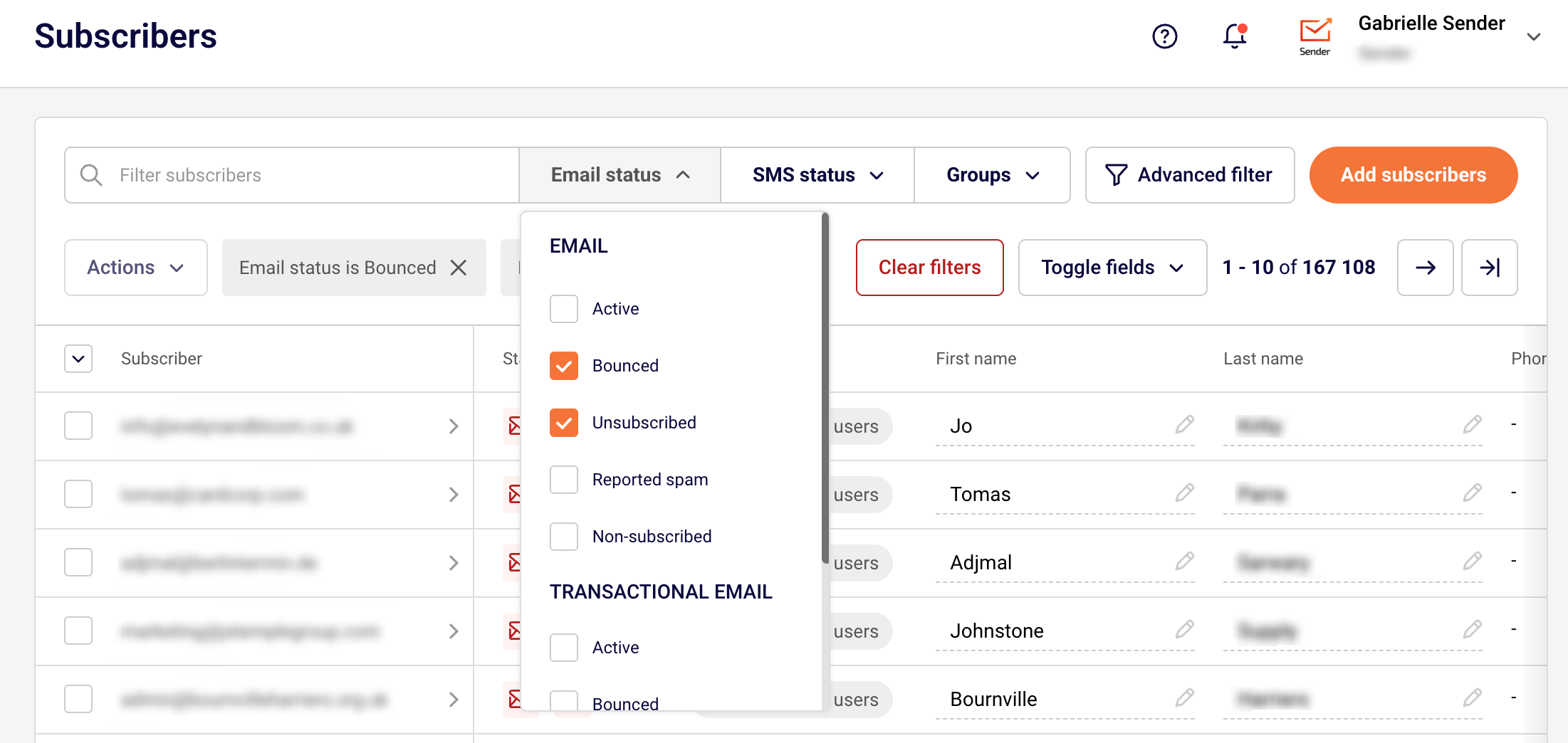
If you need to delete the unsubscribed or bounced email addresses, you can do that with a few clicks. First, go to the subscriber’s section, then click on “Email status” button and select “unsubscribed” or “bounced” when the option is selected, you will be presented with all unsubscribed and/or bounced recipients.
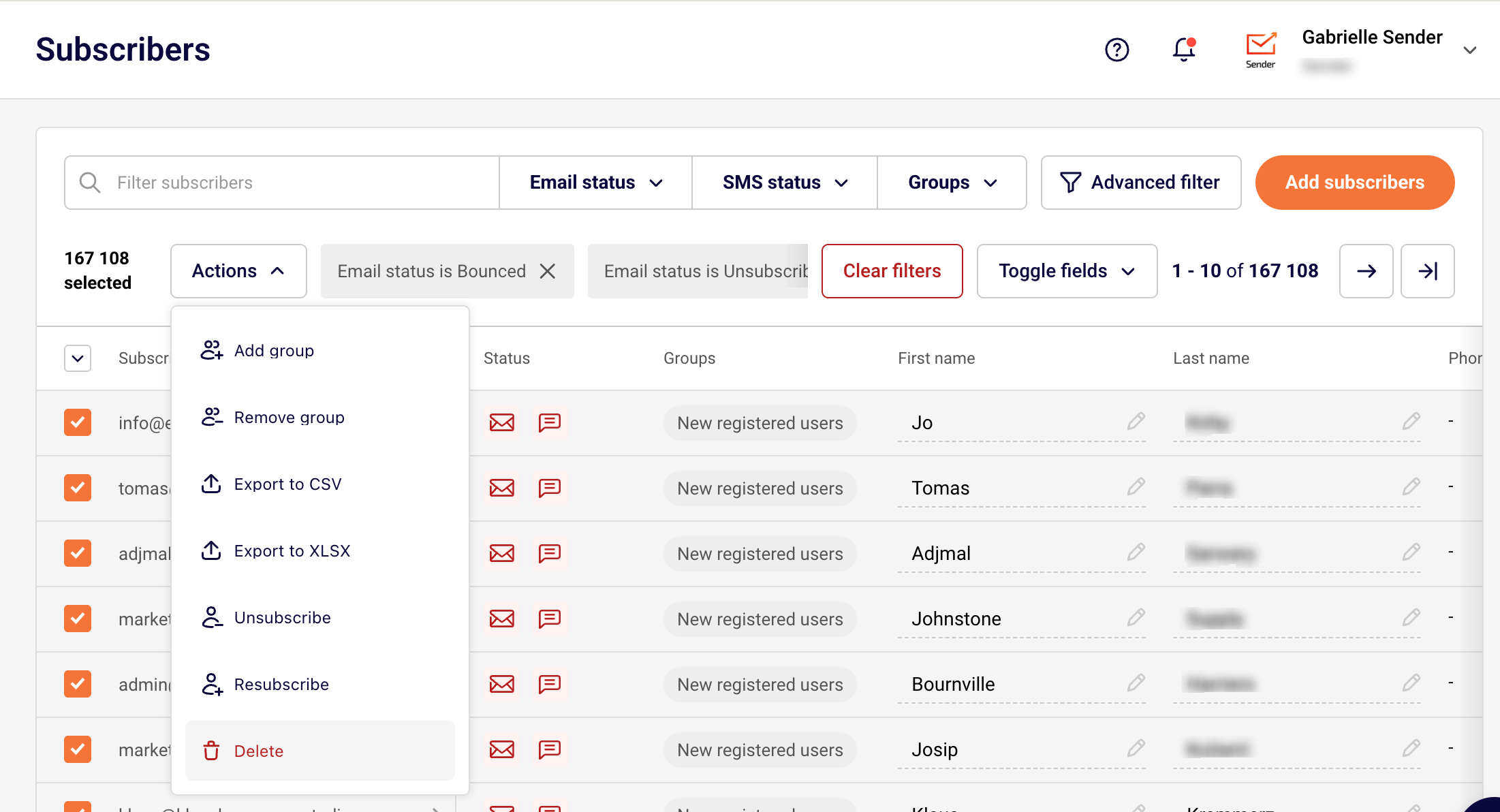
Next, select all filtered recipients and click on “Action” button and hit delete.
If you got stuck on a specific task or can’t find a way to execute a particular job, contact our support team via LiveChat or [email protected] – we’re here to help 24/7.
Start by heading to the ‘Automation’ section and then clicking on the ‘Create new workflow’ button at the top. Next, you will need to select a trigger that will begin the whole automated sequence. In this case, we’ll pick the “Subscriber added to a group ” trigger, which means added subscribers will activate automation’s flow.
After selecting the trigger, add an email step and create the “Welcome” email. That’s enough for the basic welcome email; however, you can add as many steps as you want.
In the video below, you will see a few additional steps being added, like delay, condition, and action (can be based on previous activity). In our case, subscribers that opened the welcome email will be assigned to different groups/lists.
Here’s a short video-guide to illustrate the process:
That’s it!
If you got stuck on a specific task or can’t find a way to execute a particular job, contact our support team via LiveChat or [email protected] – we’re here to help 24/7.
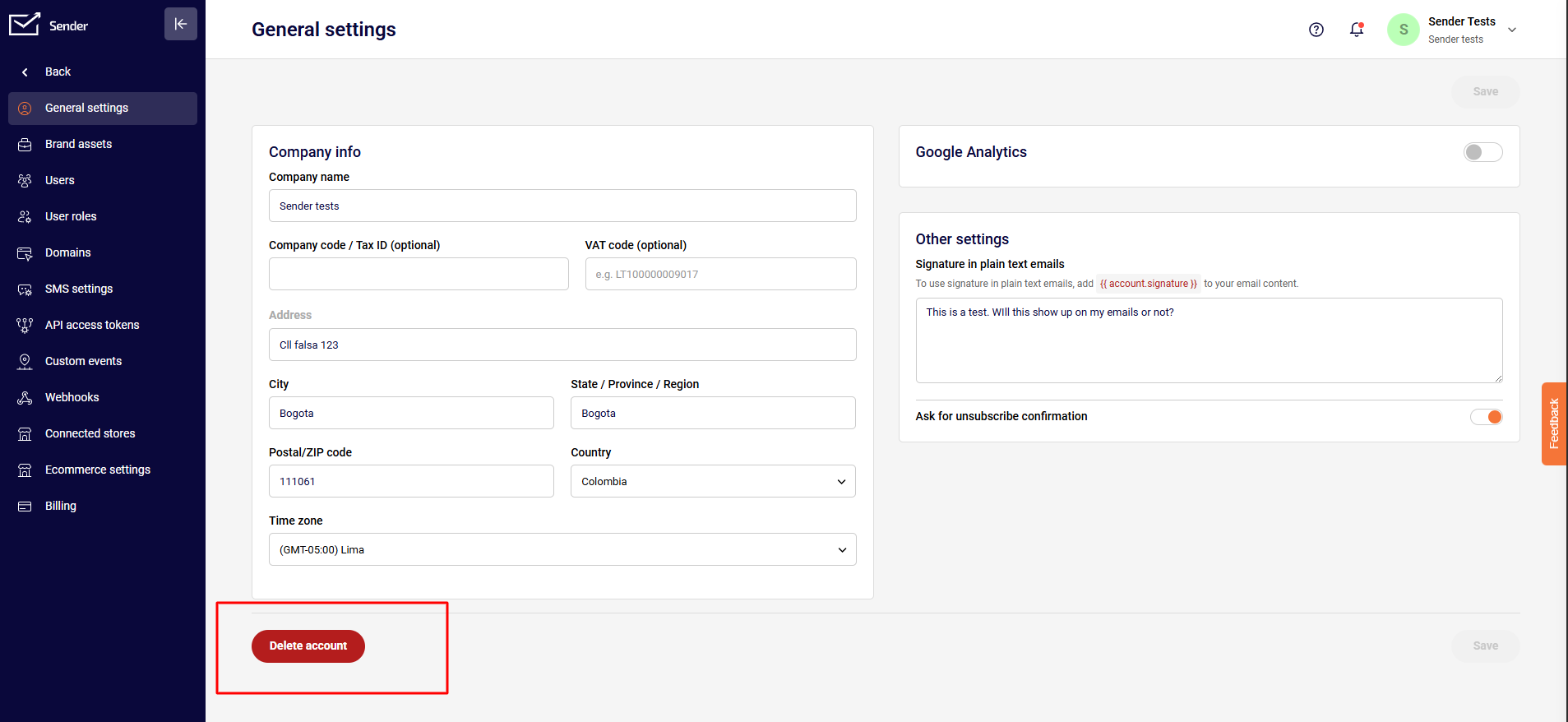
In order to delete the account, click on the “Account settings” section, then tap on the red “Delete account” button at the bottom and follow the instructions.
That’s it!
If you got stuck on a specific task or can’t find a way to execute a particular job, contact our support team via LiveChat or [email protected] – we’re here to help 24/7.
Whether you’ve just made a payment, updated your company details, or need an invoice before paying by wire transfer, you can download an invoice from your Sender account at any time. This guide walks you through each scenario.
Before payment (for wire transfer)
If you’d like to pay by wire transfer, you’ll need an invoice with our company’s details first.
Go to Account Settings ->Billing in your account.
Click “Upgrade plan” or “Change or renew plan” if you are already on a paid plan, then choose the plan you want to purchase.
Once you found the plan you want, click “Upgrade” button of that plan. Once you are taken to the next step, simply return to the main Billing section — your invoice will be generated and ready to download.
Click Invoices, then click Download invoice to save it, and use the details to make your wire transfer. Do not forget to reference the invoice number in the notes of the transfer.
Please pay your invoice within 30 days of choosing the plan. Once the payment is received and the order is confirmed, your plan will start on the day of the plan activation.
After payment
Once your payment has gone through, your invoice is available in the same place.
Go to the Account Settings ->Billing section.
Find the relevant order in your Invoices section.
Click Downloadinvoice next to the invoice you need.
After editing your company details
If you need to update your company name, address, company code, or VAT number on an invoice, you can do that before downloading.
Go to Account Settings -> General settings. There you can edit your Company information.
Update the fields you need to change (company name, address, company code, VAT number) and save.
Return to the Billing section and download your invoice — the new details will appear on it.
If you’ve already paid and need an updated invoice with corrected details, simply edit the details after the purchase and download the invoice again. Invoice information updates in real time.
If you got stuck on a specific task or can’t find a way to execute a particular job, contact our support team via LiveChat or [email protected] – we’re here to help 24/7.
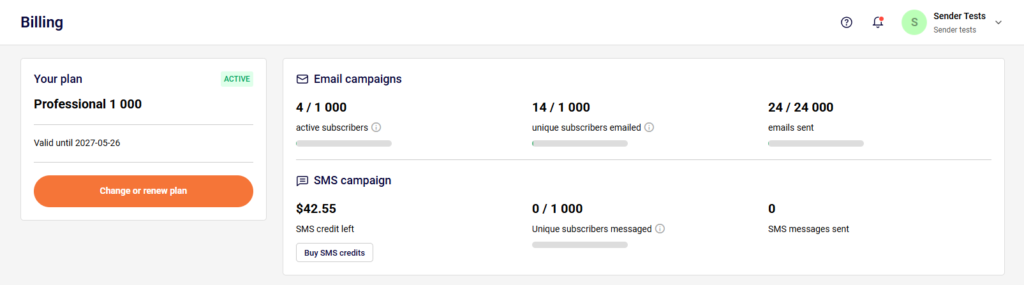
You can check your unique and active subscribers anytime in the billing section. Simply go to Account settings -> Billing.
In this section, you can track how your current usage compares to your plan’s allowances:
Active subscribers: The total number of active (Subscribed) contacts currently stored in your account.
Unique subscribers emailed: The number of individual email addresses that have been sent at least one email during your billing cycle.
Unique subscribers messaged (SMS): The number of individual phone numbers that have been sent at least one SMS message during your billing cycle.
Key Difference: Sending multiple campaign emails or text messages to the exact same contact will only count as 1 unique subscriber against your monthly limit, but they will all count toward your “Emails/SMS sent”.
If you got stuck on a specific task or can’t find a way to execute a particular job, contact our support team via LiveChat or [email protected] – we’re here to help 24/7.